28 April 2006

Teachers and Technology 2: The SEN Component

If teachers don't imbed the culture's technology into the classroom, and if schools continue to resist the world of technology that surrounds us (see Teachers and Technology below), they will not do much damage to rich kids, or to perfect students, or maybe even to that traditional "top third" of the classroom. After all, if you eliminate music and art from schools wealthy parents will simply pay for lessons, and we all know that a certain percentage of kids will "get themselves educated" no matter what we do. So if schools don't use computers aggressively, and handhelds aggressively, and teach the power of the cell phone, the children of privilege will still get all the exposures they need through their parents and a percentage of students will still figure it all out by themselves, but those not in either of those groups will slip further and further behind. "Tracking" at its most vicious.

Technology is a leveler. Not strong enough to lift that weight? Use a winch or a lever. Not fit enough to walk ten miles to work every day? Drive your car. Memory not good enough to remember all your phone numbers and computer passwords? Write them down. Not enough time in your day to sweep your home and beat your rugs? Use a vacuum cleaner.

When a school or a teacher denies technology to students, they are limiting success to the few, the gifted, and the entitled. Saying a student can't use a calculator, or can't use a screen reader, or can't use a Pocket PC, or can't text in their answers by cell phone, or can't separate themselves from the commotion of the classroom via CD-player or mp3 player, or can't feel secure in having a phone that can call home in their pocket, or can't use on-line research tools, is discrimatory. None of this is any different than me telling members of the U.S. Congress that they can't use elevators, or that they must walk to work, because I think they'd be healthier if they got more exercise. And none of it is any different than telling a child who cannot walk that they can't use a wheelchair, because, "that is not the way we get around in the real world."

But there is a huge additional cost. Students who are not taught technology use will do significantly worse once out of "school" - assuming they don't have families that will make up the difference. Not teaching a student to effectively use Google (and Google Maps and Google Scholar) today is the same as not teaching the student where the library was 20 years ago. Not teaching students how to access podcasts denies them a vital information tool they will probably need in college. Not teaching them to use handhelds hurts them in thousands of employment possibilities from Wal-Mart on up. Not teaching them cellphone use and cellphone ettiquette is the same as not teaching writing skills. If your school is not doing these things they are in the front lines of pushing inequality and the concept of a permanent underclass - they are denying an education to those who need it most.

- still angry after all these years, Ira Socol

18 April 2006

Teachers and Technology

What about technology do teachers need to know? For the past year I've been working in various ways on this question, and, well yes, I have long lists of answers. But those long lists are about competencies, and what matters more - at the start - are attitudes. Teachers need to accept both the technologies and the responsibilities that they, as educators, have to the future - and their students' needs. If this happens then they may seek out the tech knowledge they need, or, at least, be much more receptive to it.

So, after years of listening to educators speak about technology, here are my "attitude adjustments."

First, educators need to stop thinking that "technology" is something separate from society and separate from their lives. After all, do we not describe human societies by their technology? We are different from ancient Greeks not in moral world-view or variations of government or even literature, but in how technology alters our interactions with, and perceptions of, the universe. Our technology is our world. To deny that is to deprive students of a key component of their education, and a whole vital set of life skills.

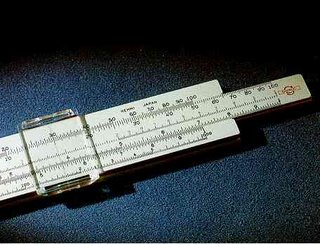
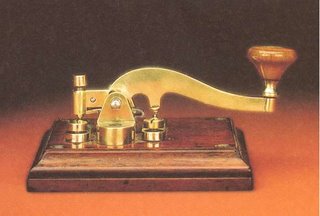
Second, teachers need to stop mourning old technologies. I am sorry, but catching the duck, pulling the feather, and cutting a perfect quill, need not be an essential part of the writing curriculum anymore. Nor does how to carefully unroll a sheepskin scroll need to be in the reading curriculum unless you are preparing children for their Bar/Bat Mitzvah. And, we could probably drop the lessons on how to look things up in a library card catalogue, in how to operate a slide rule, and how to use correction fluid properly when typing. Also, morse code no longer needs to be a graduation requirement. Notice that everything in this paragraph is "a technology." They were introduced into education at one point in time in response to changes in the world, and they have disappeared in response to other changes. The world works this way.

And to combine those ideas, they must realize that new ways to do things are not either "better" or "worse" - because that is a debate we could have for a millenium without resolution - but simply different, and the way things work now. Bemoan the destruction of the scribes' art at the hands of Gutenberg all you want, but that is not an educationally valid reason to refuse to let your students read printed books.
Third, educators must accept responsibility for changing knowledge. They are professionals, underpaid certainly, but professionals in perhaps the most important human occupation. Imagine your doctor saying, "I don't believe in MRIs or CT Scans, we'll open you up and look around." Or, "You may think there are different effects of medicines on different people, but I really haven't read those things." You would run out the door. But teachers and school administrators say the equivalent things all the time. Imagine the 1970 teacher saying, "I don't use pens in my classroom, they run out of ink sometimes and children lose them." Or, "I know there are other reading books but I've stuck to McGuffey's Readers, they have always worked for me." You expect your phone not to depend on vacuum tubes anymore, and you like your airliner to use radar and automated landing signals, and you don't go out in the morning expecting to crank-start your car. Should students expect anything less?

Fourth, teachers must accept human differences. I realize that this is difficult for either American Republicans or New Labour in the UK, but different students need different things, and the best way to let that happen in a classroom (absent individual tutors) is technology. We need to fully understand that there are all kinds of different but effective ways to get information in, and get information out - not just "the authors intent" or "the old way." After all, Shakespeare wrote his plays to be performed before rowdy audiences of standing people who were talking, yelling, singing, sometimes throwing things - yet - and this is true - I have seen teachers have students read his plays! And you know what? Some students (not many in my experience, but some) really like it.

Fifth, get over it. "I don't allow pencils in my classroom, one student stabbed another with one once, and others write bad notes with them." "I don't allow books in my classroom, I had a student throw one once and another child was hurt. And last week a boy brought a book to class with bad words in it." "I won't let them use paper for math, it interferes with them memorizing their arithmetic facts." "I can't allow children to wear shoes in class, some students have more expensive shoes than others, and then jealousy starts." "I will not let students see each other in my classroom, I realized that some students were signalling to their friends." I have heard every one of these excuses from educators explaining why they can't let students use computers, or pocket PCs, or cell phones, or the internet, or calculators. And all they are, are excuses for faculty not willing to learn how to teach to, and for, a world different from the one they were born into.

- Ira Socol

17 April 2006

CSUN 2006/People to Watch

The disability rights movement often says - "Nothing about us, without us." That's a powerful thought. So often Special Education/SEN departments, in primary, secondary, university levels, and surely in teacher-training and educational research institutions, are the exclusive province of people who have never struggled themselves with these issues. I'd never suggest that "you must be dyslexic to work with dyslexics" (or anything like that), but imagine - if you will- a U.S. university with an all-white faculty for its African-American Studies department, teaching all-white classes. Surely a critical perspective would be missing. Those of us who see the issues first hand do have some essential things to say, and perhaps we can also improve the conduit for two-way communication that - for the first time - starts to get the voices of the "different" students up into the realm of educational decision-making.

For my last "CSUN 2006" post (the blog will continue, of course) I just wanted you to meet two brilliant people I met in Los Angeles. The world would describe both as "disabled" - but the world really needs to listen to both these gentlemen...

When I first began listening to Izac Milstein Ross in his presentation on Universal Design at the CSUN Conference I let myself hear him the way, I think, others often hear me - that is, as angry and excited and passionate but perhaps too far from the "real world" that teachers and schools are forced to occupy. But, then I realized, Izac and I aren't wrong, Izac and I are impatient and angry, and that is the way we should be.

Izac is a teenager growing up in a dyslexic and attention-challenged buzz who is smart enough to know exactly what he and others like him need. More than that, he knows what needs to be done to get schools to work for both kids like him and kids in general, and he has done the hard work of developing a framework that would make education fully accessible. That's beyond impressive for a man still in high school (a life-point at which I was just frustrated and angry).

Izac's framework - The E.D.U.C.A.T.E. Model: Effective Delivery of Universal Curricula via A.T. for k-12 Education - is a powerful work that could move us forward in very important ways. And he is a powerful speaker, who can really communicate both the needs and the potential.

He's headed to university next year. Don't lose track of him.

Ben Foss is one of those superstars of life (lawyer, MBA, Stanford grad, highly successful) who hasn't forgotten just how hard it was and hasn't left others behind. Ben has created the Initiative for Learning Identities a not-really-text-based advocacy and support organization for those with learning differences. This group creates videos and other multi-media approaches to describing the issues and defining solutions. Ben himself is one of those people whose passions flow when the conversation starts - he's a gigantic voice for the future of education of all of us who "don't quite fit" the mold schools want to pour us into.

- Ira Socol

10 April 2006

Mapping, and Speaking, Diversity

It is hard to get people to really accept and respect human diversity, and that is a huge issue for those of us with, and/or who work with, students with differences. But the world is full of differences, and maybe if our schools were better about teaching the breadth of that diversity, acceptance and respect would come more naturally to the classroom.

One thing that has always bothered me is our willingness to call other people's nations and cities by names we choose, instead of the names they choose. There are no countries called "Germany," or "Spain," or "Hungary," or "Finland," or "China." No one travels to "Vienna," or "Rome," or "Munich." These are just English names, and teaching them to our children "in isolation" encourages a "one correct way" vision of the world, that not only interferes with heir future in the world but probably backfires badly on our students with differences and disabilities.

There are, thanks to technology, solutions for this. Here's a world name list, and most Wikipedia entries are great, often including sound clips. My little contribution is now available at Wayfaring

It is an attempt to give classroom teachers the ability to show students how the people of the world name themselves. The idea is to collect "native names" - offer pronunciation guides, and even link to "in language" radio stations. Click on a few waypoints to see. Send me information on a country if you'd like to help me add on, or if you want to correct or expand anything.
socolira "at" msu.edu

-Ira Socol

06 April 2006

CSUN 2006/More Keyboard Alternatives

We keep moving further and further away from the need, or even the desire, to waste any huge amount of a child's time teaching them touch-typing on a QWERTY keyboard. There are so many other options, and if we learn how to offer choices to students - from the cell-phone touchpad and on up - they just may find the solution most comfortable for themselves.

I keep coming across the "statistic" that only 25% to 30% of Americans are actually "touch-typists" and though I can't find where the figure comes from, since it pretty closely tracks the percentage of United States students who read proficiently or do math proficiently (from 30 years of NAEP scores), this seems like one more example of a situation where we might as well try something different because what we are doing could hardly be worse.

Whatever. There are literally thousands of possibilities, here are a few...

The FrogPad: FrogPad comes in both wired and Bluetooth forms - thus allowing text entry into virtually any electronic device. "The iFrog has 20 full-size keys in a space less than 4 x 6 inches. 15 keys are for entering letters, numbers, and symbols and the remaining five for shift and control functions. Alternate characters are entered by pressing the Space or Number key together with one of the 15 letter keys. The Number key by itself puts the iFrog into a numeric keypad mode while the Symbol key provides access to the two symbols on the right side of each letter key.

"According to FrogPad, the iFrog has been designed for fast data entry. The letter layout is based on the percent usage of each letter in the English language. Fifteen letters that are used 86 percent of the time by typists are placed in the most efficient locations on the keyboard. Overall layout uses the natural drumming motion of the hand to further optimize performance and enables international scalability for other languages.

"FrogPad claims that the iFrog's ergonomic design significantly shortens learning time compared with the traditional QWERTY layout. University studies indicate new users can reach 40 words per minute in 10 hours versus the 56 needed with QWERTY. Both right- and left-handed versions are available." FrogPad for the disabled. Frogpad for educators.

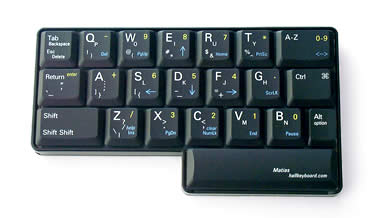
The Half-Keyboard: This can work for many different types of users, including those with limited or no use of one hand, or those who need to keep one hand consistently on a mouse or drawing tool. The system works via a simple "right-left reflection" method. If you use the left-handed version, the left hand keys are just as they are on a QWERTY keyboard, but if you hold the space bar down while typing a letter, it produces the equivalent letter from the right side of the keyboard (vise-versa with the right-hand model). It is very easy to learn. The manufacturer says, "Type while talking on the phone. Easier text editing – Scroll, select text, type corrections, or make deletions, without moving your hand back and forth between keyboard and mouse. Hold documents in one hand and type them in with the other hand. Users of Desktop Publishing, CAD, Photoshop and other graphics software can change tools and issue commands on the Half Keyboard, without taking their hand off the mouse or stylus. One hand incapacitated? Type with the other! A Half Keyboard is ideal for someone with a hand injury or disability." I have seen this layout work very well.

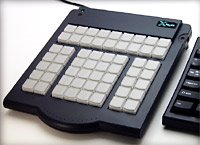
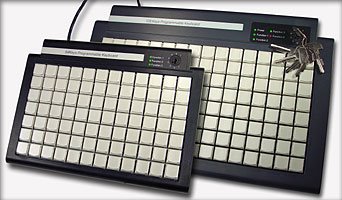
Programmable Solutions: Another choice is to start with a blank slate and set up the keys the way you want to. This allows the creation of all kinds of quick-keys to support those with disabilities. There are fully programmable keyboards and there are the "blank" X-Keys Desktops, available in 20 Key, 58 Key, 84 Key, 128 Key, and 16 Key (a long "stick") versions (20, 58, 16 key versions available from EnableMart). The X-Keys system can replace a regular keyboard or add to it, offering many dramatic fast-touch solutions to boost typing and other communication. It is an easy system to gety set, and to alter, and even comes with easy-to-use templates for creating the key labels.

Happy April Holidays to all, whether it is Easter, Passover, Buddha's Birthday, Mohammed's Birthday, Songkran, the Easter Rising 90th, or Dia de Liberdad - Ira Socol


04 April 2006

CSUN 2006/Live Captioning-Notetaking

How to keep track of what goes on in a class? Does taking notes help? Would a bi-sensory approach work best? How best to help hearing impaired students? or students for whom notetaking is difficult? or students for whom the physical act of writing - or even typing - is all-consuming ("if I concentrate on my writing I no longer hear the instructor well...")?

We could design individual solutions, from personal notetaking assistants to sign-language interpretors to attempts to simplify keyboards via quick-key-combinations or "chords," or, we can look for Universal Design solutions.

Three technologies offer great possibilities:
1. Live Captioning of the class for everyone via "echo-captioners."
2. The IBM Liberated Learning concept, using instructor voice training.
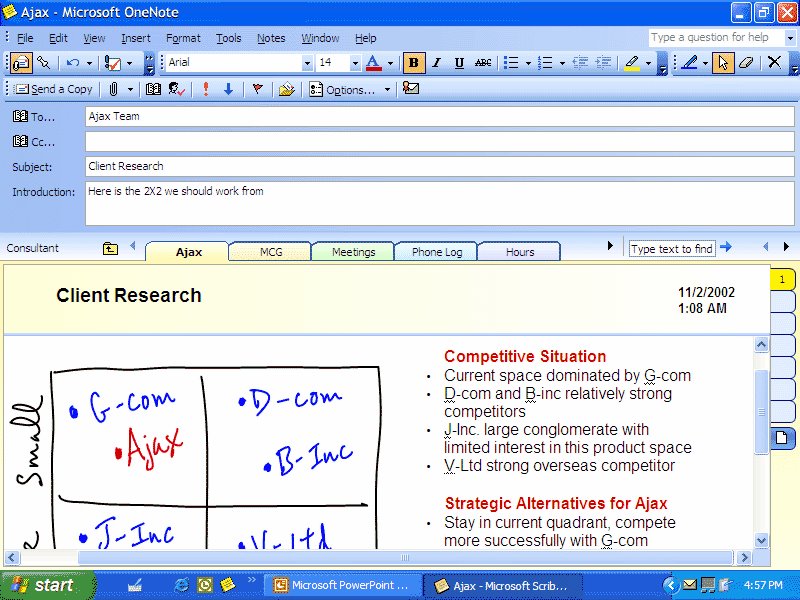
3. The classroom notetaker utilizing Microsoft's OneNote software.

You might want to start by looking at The Case for Real-Time Captioning in the Classroom by Carnegie-Mellon's Aaron Steinfield... "However, one finding from my first experiment (Steinfeld, 1998) provided clear reinforcement... A 9.8 percent increase in recall accuracy was seen from a traditional presentation (the speaker's face and voice only) to the RTC [Real Time Captioning] conditions for the hearing subjects. The decrease in perception difficulty was clearly beneficial to the students who were deaf, with a 149.6 percent accuracy increase from the traditional condition to the RTC conditions. The real world impact of these results is that providing captions will clearly help deaf students. Furthermore, captions will also assist their hearing classmates. This is especially true for rooms with poor acoustics where hearing students have perception difficulties similar to their deaf and hard-of-hearing counterparts due to the environment."

Liberated Learning is a brilliant idea with some key difficulties. The promise is all-time, automatic access to captioned course content via instructors who were wireless microphones feeding into a high-end version of ViaVoice that adds grammar content. The text is then fed to a projector which both puts the text up on a wall behind the lecturer and makes a digital transcript available to all students immediately after class. I have actually utilized wireless mics and ViaVoice Pro-USB 10 feeding directly to the laptop computers of hearing impaired students, but without the addition of grammar (periods, commas, etc) this is difficult and only appropriate for the most committed students. The system also fails in highly interactive classrooms where many voices are heard. There is also the issue of lecturer willingness to properly train their voice, which, lacking an overall institutional commitment, is "uneven." Still Liberated Learning is "the future," and those of us on "the technology" side need to keep pursuing this goal.

Echo Captioning is an easier to apply strategy. With this method a "voice captioner" sits in the classroom linked by a mask microphone to a Voice-to-Text equipped computer. The captioner repeats everything that is said, by both instructor and students, with appropriate grammatical marks. The resulting text can then be either directed to individual laptops, or can be projected as above, and again, made available as a digital transcript after class. Ultech displayed a simple, relatively inexpensive system for this at CSUN, called Caption Mic Classroom. Though the voice captioners need training and need to train the software, this system does away with the need for lecturer voice training and complex classroom mic set-ups.

OneNote Notetaking is another choice. I tend to call OneNote, Word Liberated, because like it is Microsoft Word freed from its origins in typewriting. OneNote has many advantages over both hand-written notes and notes typed into MS Word. It can provide accuracy not typical of handwriting, it can be re-arranged later, based on increased understandings, it can be combined with digital text and read back by text-to-speech software. It can also accept handwriting, sound clips, diagrams, etc. A classroom notetaker provided for hearing impaired, physically impaired, or learning difficulty students should not be quipped with antiquated technology like carbonless duplication paper or even asked to copy his or her notes. They should be equipped with OneNote on a tablet PC. And if the notes exist for any students, why shouldn't they be made available after class to all students? After all, are we teaching content or the art of notetaking?

Reinforcing lecture and discussion content is an essential part of education. Captioning, Class Notetaking, and transcript/notes availability can all be an effective part of this, and technology makes it all much easier.

Waiting for spring in North America's Midwest -Ira Socol

01 April 2006

CSUN 2006/SQR3 and Literacy Software


How do you use literacy software in the classroom? As I've said in previous posts I think this type of software can do some remarkable things, including increasing "read to time," allowing access to cognitively-appropriate information even when skills are low, and supporting sight word recognition (the important value of word-highlighting). But like everything else, the best uses come when the uses of these packages are tied to instructional methods.

This is especially important with older students. When I meet with students exiting secondary education I can always tell if they came to decoding "late." They can read, but they have no strategies for handling content. They are weak on understanding what sentences are, what paragraphs do, and have not developed real reading strategies. This is because these skills are usually taught in primary schools - secondary schools concentrate on more advanced skills. So when an older student begins to use literacy software as an accommodation, we need to help those students do all that eight-year-old to ten-year-old work on managing the information they get from texts.

SQR3 is one method of building comprehension skills. It is a method that audio books could simply never support, because it requires students to move back and forth through the text multiple times, and because it works best with extensive notetaking and highlighting. All of this is impossible with a book-on-tape (or CD), but easy with WYNN or Kurzweil 3000.

SQR3 - Survey, Question, Read, Recite, Review works this way when combined with high-level scan-and-read software...
Survey

Survey the chapter. Check through it, looking at headings and paragraph topic sentences (here it really helps to use the secondary highlighting of the sentence being read, and the easy click and read interface). Read the introduction to the chapter. Skim questions, key words and summaries at the end of the chapter. All this helps to create a context for remembering information.

Question
Create and answer questions. For each section in the chapter, ask these 4 basic questions: 1. What is the main point? 2. What evidence supports the main point? 3. What are the applications or examples? 4. How is this related to the rest of the chapter, the book, the world, to me? Here's
where the notetaking and highlighting features in this software work perfectly. You might even start by having students create notes with these questions at every paragraph if the subject seems particularly hard for the reader. And, of course, they can use spoken "Voice Notes" to do this, typing is not required.

Read the section
Read the section actively. Search for the answers to your questions. Answer the questions with a new set of notes, and perhaps, highlights in a different color.
Recite the main points
Verbalize the answers to your questions using Voice Notes. You may also have students verbally summarize paragraphs or sections. This builds memory. Have the students then play back their voice notes to hear themselves.

Review
Go back re-listen to your notes, and anything that you've highlighted. With WYNN or Kurzweil a student can do this again and again.


Notice all the built in supports. Unlike audiobooks (or school property textbooks for that matter), the student can highlight and make notes "in the margins" to their hearts content, and can even get rid of extraneous notes easily if their understanding of the chapter changes.

And, in addition to being a primary reading tool, WYNN or Kurzweil becomes a long-term study tool, and it is a tool that the teacher can easily check the use of.

Thanks to Renee Clark of FreedomScientific, the company responsible for WYNN, who ran a CSUN Conference Session on this topic. -Ira Socol

28 March 2006

CSUN 2006/Cyrano


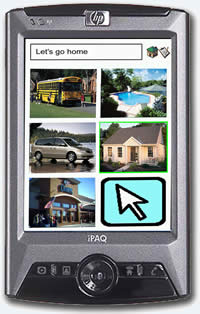
The Cyrano Communicator is one of the new AAC devices based in the Pocket PC. The Pocket PC (Microsoft Windows based PDAs) offers a dramatic change and upgrade for those dependent on assistive speech. They are no longer tied to large, limited function communication boards, nor are they tied to big, heavy laptop computers. The carry anywhere, highly powerful, wireless and bluetooth equipped Pocket PCs weigh just 6 ounces.

The Cyrano has some especially nice features. The built in camera allows you to easily build multi-level photo menus for speech, and for text input there are four options:
"Keyboard Input- This is a conventional keyboard displayed on the screen. The keys are small, and the method is slow, but it is easy to learn and very accurate.
Transcriber- The Transcriber is the most natural of the four input methods. Just write your words anywhere on the screen using any combination of cursive and block letters. The program translates your writing into letters in the text box. This method is fast and easy to use, but not very accurate. If your handwriting is neat, this may be a good option for you. The computer can learn your writing style after a while, so prediction becomes better with use.
Block Recognizer- Block Recognizer is similar to the interface used on Palm™ machines. Short keystrokes, called “graffiti” style of writing, produce letters."
... or you can connect a bluetooth keyboard. Giving you plenty of ways to get thoughts in, and thus out, and because of Cyrano Shorthand - a great little abbreviation utility, building complex messages out of three and four letter combinations is easy.

Cyrano comes with five voice personalities - 2 American men, and a British man, a British woman, and an American woman, and comes fully loaded with software for about $1200 (US). Options include SD Memory cards - available anywhere, the above-mentioned Bluetooth keyboard, and an incredible waterproof tough-case (built originally for surveyors) that's just a hundred bucks.

- Ira Socol

27 March 2006

CSUN 2006/Tango - New in AAC

My sister told me this story: Years ago, during a "new mother break" from teaching, she was working in a lawyer's office and received a phone call that began with a computer voice saying, "Please do not hang up - this is not a joke - I am communicating with a speech synthesizer..." Ah, yes, the absolute frustration of not being understood, not having your thoughts and emotions taken seriously, a disaster across the full range of cognitive capabilities...

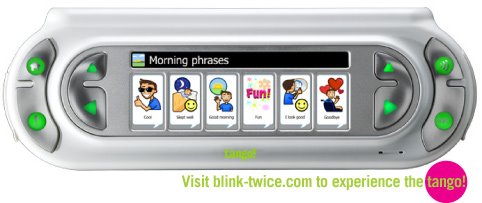
This year the CSUN conference had many wonderful Augmentative and Alternative Communication devices, especially excellent Pocket PC-based systems that I will get to in a few days, but one device just stood out - especially for elementary/primary educators - the new Tango from Ablenet.

Tango is a beautifully designed device that even those with significant dexterity issues could easily carry with them everywhere. It has brought the simple connectivity of contemporary handhelds (auto-detecting switch ports, USB-ports, memory-card slots, built in camera) to this type of device. It has a wonderfully brilliant interface that allows users to get to the communications they need quickly and easily. And best of all, it features "voice-morphing," which, among many other capabilities, allows the user to speak in "their regular voice," or to whisper, shout, or even whine.

Yes, your ten-year-old can now complain, "I'm soooo bored," in the appropriate voice.

Tango appears to be truly liberating technology. The range of capabilities will really enhance the user's communication - and learning. The simplicity of how it works, how new content gets loaded, the ability to record, say, a female voice and morph it into a male one (or vise-versa, for appropriateness), the simplicity of taking pictures and installing them ("No, I want the Arsenal away shirt."), and the connectivity systems will make life much easier for educators.

Check this one out. They promise that starting sometime today, 27 March 2006, they will have a simulator up on their web site.

back in cold Michigan - Ira Socol

25 March 2006

CSUN 2006/Reading... Universal Access

There are so many really wonderful ways to provide literacy support to those with "print disabilities," and they each have a range of strengths and weaknesses when it comes to matching these software products up with specific students. But I'd class this group of solutions into two categories, first, those best used as universal design solutions, and second, those with the most powerful study skill and set-up options for students who need the highest levels of support.

That latter group includes Freedom Scientific's WYNN 4 and Kurzweil 3000, and those will be the topic of the next blog. This one is devoted to what I might call the "UDL class," although the first one here comes very, very close to crossing over between categories.

First though, I need to address a huge issue in this area of Assistive Technology. This is the negative impact of the "solutions" from Premier Assistive Technology. All through the conference I've heard complaints about how this is being "sold" (almost given away) to schools. How it simply doesn't work. How it both gives AT and digital literacy support a bad name while giving school administrators an excuse to not really make their schools accessible. Students report that it does not work. Teachers report incredible frustration. Trainers report that it is often hard to get teachers or students to try anything else after struggling with it. Steve Timmer, who founded Premier, is a nice guy, but he is doing some real damage to this field.

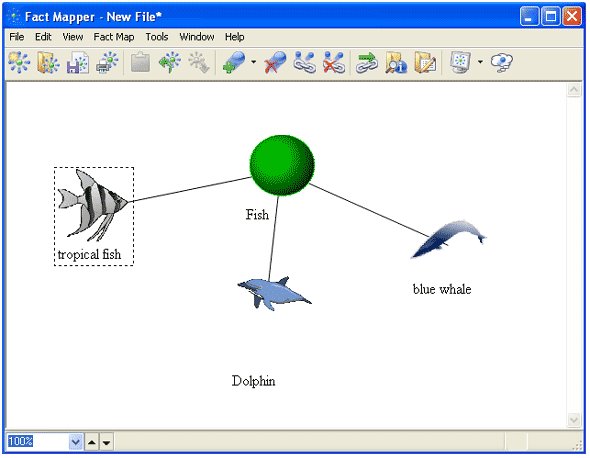
OK, enough of the negative. Here's the positive. Let's start with Text-Help's Read-and-Write-Gold v.8. This is an extraordinary literacy support suite that runs, primarily, as a tool-bar allowing you to read in other applications. Because of this, because it does not change "the look" of the computer screen, it seems easier to teach students to use. It is not quite as "robust" a literacy-in-education tool as WYNN and Kurzweil (a brilliant young man that met here, Izac Milstein Ross, notes that it lacks the true study supports of the others), but it might be the best UDL solution to ever appear. Not only does it work consistently and cleanly (great code writing), but imbedded with it are a "fact mapper" (like Inspiration), a great scientific calculator, voice-to-text capabilities, and much, much more. All in one package that costs less than either WYNN or Dragon alone (much less Kurzweil). There is also a test-maker for teachers and great pdf reading capabilities.

A really nice feature is the ability of the teacher to create "user groups" with specific features (supports) in use or not. There is also - as in WYNN and Kurzweil - the ability to convert the text directly into mp3 files (or other audio formats) and transfer this directly to CD or iPod. And there's a unique thesaurus structure called Word Finder. I could really see this applied to every computer in a school, and open to every student - without diagnosis. It is a set of solutions that perhaps 70% - 80% of students would find useful at one point or another. Read-and-Write Gold is a UK invention (from near Belfast), and has achieved a great deal of acceptance in Europe, from primary through university. In the U.S., Kentucky has chosen it as their primary state literacy support and testing solution.

Another low training solution is Plustek Book Reader. Plustek isn't a "total" solution - it has none of the "bells and whistles" of WYNN, Kurzweil, or Read-and-Write, and won't help you with math or science type books, but it is an inexpensive text-to-speech reader that comes with a great, fast scanner that doesn't make you "press-down" to get properly scanned text. "SEE (Shadow Elimination Element) Technology, for any book can be placed completely flat against the scanning glass and will result in a perfect scan with no book spine shadow or distorted lines of text." - This really is a "throw the book in" and start reading option, that has excellent low-vision applications and that could help in literacy.

Then there is ClaroRead. ClaroRead, ClaroConcepts, and WordRead are all elegant text-to-speech solutions, but they lack the kind of word and sentence highlighting that helps students learn. But they are inexpensive and stunningly easy to use. If price is your only consideration, and your staff won't convert documents into the free Microsoft Reader, then this would surely beat anything from Premier.

None of this is to suggest that Microsoft Reader and Firefox FoxyVoice (or the more complex FireVox) should not also be on every computer in your school. They are 100% free, and not having them really means that your school isn't trying.

As promised, I'll look at WYNN and Kurzweil, and how they are being used in "best practices" as soon as I can.

from Los Angeles where the beach - at Manhattan Beach - was just lovely today... Ira Socol

24 March 2006

CSUN 2006/Eye Gaze


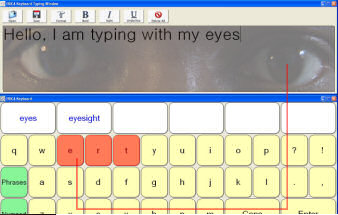
A new system called "ERICA" may have finally broken through many of the barriers that interfered with adoption and successful use of "eye-gaze" "eye-tracking" as computer control. I literally spent less than 30-seconds prepping the system before I could start to type successfully, and it only took that long because I'm not good at keeping my head still (eye-gaze and ADHD may never go together).

All you do to set this up is to aim the firewire camera, and look at five spots on the screen. One for focus, then four corners (much like touching the four points on an Interactive White Board). And then you're off and running.

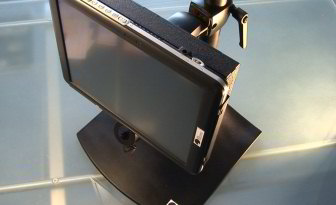
The system is built on a tablet PC, so full touch-screen capabilities are built in, making it perfect for ALS, for other degenerative issues, or simply because "you might have good or bad days."

This level of technology was way over $20,000 (US) just a few years ago. Now it's about $7,000 (US) complete.

from Los Angeles - Ira Socol

CSUN 2006/Illinois and Web Accessibility


As a Michigan State guy maybe I shouldn't be promoting Big Ten rival University of Illinois, but these folks are working on important inventions in improving web accessibility.

This is a huge issue. Despite all the laws, most U.S. educational web sites (educational web sites!) remain really difficult for disabled students (and parents) to use.

I've done accessible web training, and it is difficult and time consuming, and faces unfortunate resistance from self-taught web designers, but UIUC has worked on some solutions.

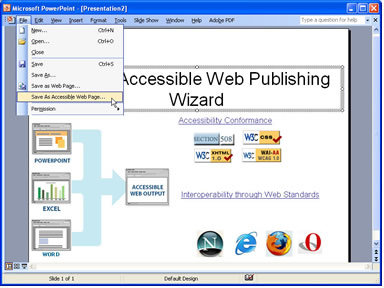
First, an Accessible Web Publishing Wizard for Microsoft Office (not free, but very cheap) that automates accessible document conversion. There is also the Web Accessibility Visualizer which gives you "see it now" feedback on accessibility errors in html instead of just the line-by-line code of more familiar tools like "Bobby." Finally their Accessibility Extension for Mozilla/Firefox offers wonderful capabilities for web developers interested in reaching everyone, without disability discrimination.

from Los Angeles - Ira Socol

23 March 2006

CSUN 2006/Speech Recognition


I'm a big fan, and long time user of Speech Recognition - Voice-to-Text technology. I've never liked Dragon much, generally finding it hard to train, unforgiving of vocal variation, clunky in interface, and too expensive - but all that said, I know that there are huge fans out there. I do use ViaVoice very successfully, and have used it with second-graders, tbi clients, people struggling with ms, and many, many other difficult situations (I use the Pro-USB 10 version). I'v also had some luck with the speech recognition software included in Windows XP, though this hardly is the solution for everyone.

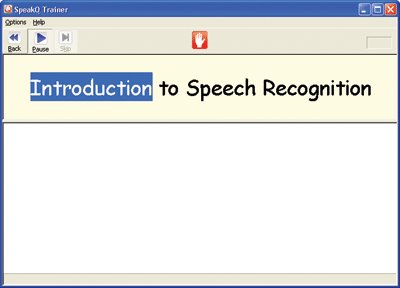
Wednesday at CSUN I saw two new exciting options. One, SpeakQ, from Quillsoft, which makes the word prediction software WordQ looks like something you need in your "toolbox." It is not just simple, the youngest child could master it, but it is the first of these software packages to allow a non-reader or very weak reader to train themselves - without a whispering helper or a tape recorder. The software simply says, "say this," and the user repeats the phrase. Brilliant! SpeakQ is an add-on to WordQ, and costs more than ViaVoice (though still half what Dragon costs) when purchased together, but it's a lot of tool for $350. (US)

I also saw a preview of the accessibility features in the new Microsoft Vista operating system. This needs to become the standard for schools and governments - many which still use the Windows 2000 system, a very poor choice for those with access issues. In Vista, the magnifier is a little better, the on-screen keyboard the same, but it is much easier to get to the Access Control Panel (which is now a part of set up), and which even contains a series of questions that will lead users to the best choices in accessibility solutions. The Narrator (screen reader) will now allow any SAPI-compatible voice to be attached, so text-to-speech output quality will be improved.

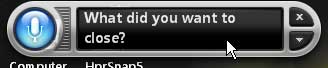
The biggest change is in the Speech Recognition/Voice Command program that is built in. This has been improved dramatically, and now features a brilliantly simple interface: "There are two major types of commands you can use with Speech Recognition: ‘Say what you see,’ and ‘Click what you see’. In addition, for times these commands might not work, like if you don’t know the name of a certain toolbar button, you can say ‘Show numbers.’ Numbers will then appear over everything on the screen and you can say those numbers to click the object under them." Look at this report, download the pre-release user guide here. Look at the speech commands here.

And one last solution... A company called Talk Technologies is selling "Voice Sylencer," a microphone that will allow voice-to-text users to operate their systems in noisy, and non-private environments. It is "soundproof" microphone you can speak into in office cubicles, in classrooms, perhaps on trains and planes, and may solve the "you can't take notes with this" issue in voice-to-text. It also has great possibilities for "echoing captioners" working in classrooms and meetings (more on that technology soon). (less than $200 US for the USB mic system).

from sunny Los Angeles... Ira Socol

07 March 2006

ICT and Primary Literacy


I recently presented on Primary Literacy and ICT at the Michigan Council for Exceptional Children Conference in Grand Rapids, Michigan, demonstrating assistive technology systems and discussing how technology can impact literacy throughout the school experience. Here's an excerpt. - Ira Socol

How can technology help?

With simple personal computer based solutions teachers can use technology to increase "read-to" time, allow students to work with sophisticated stories that might hold their interest, engage them more actively in the world of books, and improve student access to informational text and thus content learning. Technology can also provide skill-building support for phonological awareness, word shape recognition, and the understanding of how sounds in English translate into English spelling.

The classroom computer, properly equipped can "multiply" the teacher, by providing "non-staffed" support in these situations.

What types of technology will help?

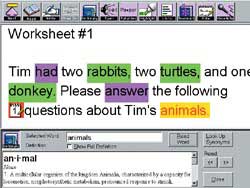
Technology can dramatically increase "read-to" time: WYNN, TextHelp Read and Write Gold, Microsoft Reader, Kurzweil 3000, all allow a book to be read to students. The student sees and hears the specific word as it is read (the word is highlighted, in WYNN and Kurzweil the sentence can also be "sub-highlighted"). This reinforces reading skills just like "mom" sitting with the child and reading to them. Any book can be scanned in to WYNN or Kurzweil (complete with illustrations), any Word document can be converted into Microsoft Reader – a more limited, but wonderfully effective and completely free software package.

Technology can enhance the connection between word shape and word sound: WYNN, TextHelp Read and Write Gold, Microsoft Reader, Kurzweil 3000, by linking the word's shape-image to its sound builds this essential reading skill and allows dramatic improvements in new vocabulary acquisition. WYNN, and to a slightly lesser extent Kurzweil, also add in dictionaries, thesauruses, and other grammatical tools.

Technology can offer direct confirmation of the connection between sounds and spelling in English: ViaVoice, an IBM voice-to-text solution, allows a student with low phonological skills to dictate to the computer and watch the words appear. Thus, saying a word will reveal its spelling. The software does require unique voice training for every student, but may offer the possibility of dramatically improving language understanding.

Technology can offer content, information-reading, access to non-readers, pre-readers, and weak readers: WYNN, TextHelp Read and Write Gold, Microsoft Reader, Kurzweil 3000, all provide students with book reading possibilities that might otherwise be out-of-reach. This can allow students to not just keep up with content-area learning, but to investigate informational texts that match up with the student's unique interests.

Technology can offer sophisticated story access to non-readers, pre-readers, and weak readers: WYNN, TextHelp Read and Write Gold, Microsoft Reader, Kurzweil 3000, allow student reading groupings based in affinity instead of specific reading capabilities. This also allows students to work on comprehension issues as they work on decoding issues.

Technology can offer full web access to non-readers, pre-readers, and weak readers: WYNN, FoxyVoice (in the Firefox browser), and other tools allow students to engage in web research and web-based communication at levels equal to their classmates with stronger reading skills.

Technology can provide testing accommodations: WYNN's Test Talker can read tests and record student answers. WYNN itself, through it's notetaking component can do the same. So can TextHelp Read and Write Gold. Even Microsoft Reader can, if tests are converted from Word, allow notes to be added, thus providing testing possibilities (though Reader cannot accept spoken answers the way WYNN and Test Talker can).

02 February 2006

Book Alternatives


What are great ways to get free alternatives to printed text for your students? Turns out that there are many options. The University of Virginia e-book collection is a wonderful place to start, with digital text available in (often) multiple formats, including pre-set for Microsoft Reader (and thus free text-to-speech). Joyce, Poe, Twain, Kipling and more are among the literary picks in mp3 and other audiobook forms at Learn Out Loud, which also has great history (FDR, JFK, Ghandi...), science, and much more.

Of course there are plenty of free podcasts available via iTunes, and there is the absolute library of historical documents from Forham University's History Sourcebook, hundreds of multi-media options at the Library of Congress's American Memory site, the Perseus Digital Library from Tufts University, and don't forget Project Gutenberg - as well as Gutenberg Australia (a somewhat different collection, check both).

Also, the collection at the University of Pennsylvania, the University of Adelaide's directory, the Digital Librarian, and the Internet Public Library.

Though not accessible, a remarkable way to "see" books is offered by The British Library through their Treasures in Full collection. You can see exactly what rare books look like, page-by-page. In the same vein, there's the Digital Gallery from the New York Public Library, and the scanned-in multi-national, multi-lingual collection at the International Children's Digital Library.